Posts

Showing posts with the label Tool

Custom web link on asset context menu(C++ modification)
Image
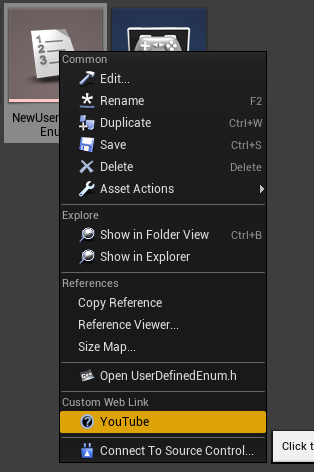
Unreal Engine 4 has the ability to describe the asset in various ways. But if you have a large number of team members and a complex game system, you will need more detailed documentation. And if you're using solutions like JIRA and Redmine, you'll need a flexible external web link system. Step 1. Consider the following items. -  Non-programmers should be able to change Web links. - It should also be available for existing asset types. -  It should be able to have other links in the same Class type as well. Step 2. Table Data First of all, we will make table row type from FTableRowBase. In my case, I created the file in 'Engine\Source\Editor\ContentBrowser\Public' Table looks like below. Step 2. Context Menu Button Modify FAssetContextMenu class. Add code as shown in the screenshots below. The remaining issues If you want to use a different link depending on the class type, see : FAssetContextMenu::AddDocumentatio...
Optimization Help Volume(C++ modification)

Image
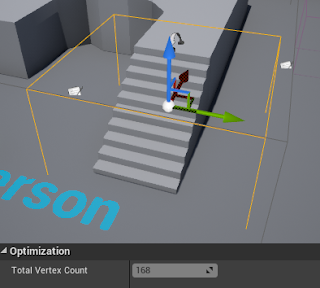
Unreal Engine 4 has a lot of features to help you optimize. But some features may be needed to optimize a specific area. In this post, let's create a volume that calculates the sum of the vertices of the Actor contained in itself. Maybe it will help to optimize the building or grassland area. Implementation C ++ code work is required. OptimizationHelpVolume.h // Fill out your copyright notice in the Description page of Project Settings. #pragma once #include "CoreMinimal.h" #include "GameFramework/Volume.h" #include "OptimizationHelpVolume.generated.h" /** * Shows information related to optimization of all actors in the volume. */ UCLASS() class TEST01_API AOptimizationHelpVolume : public AVolume { GENERATED_UCLASS_BODY() public: UPROPERTY(VisibleInstanceOnly, Category = "Optimization" , Transient) int TotalVertexCount; protected: virtual void PostEditMove ( bool bFinished); virtua...

Actor with time management(C++ modification)

Image
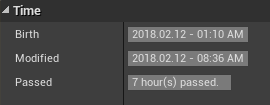
You may need to display the time actor was created and the time it was changed. If several people are working together, you will need it more. Implementation C ++ code work is required. ActorWithTimeManagement.h // Fill out your copyright notice in the Description page of Project Settings. #pragma once #include "CoreMinimal.h" #include "GameFramework/Actor.h" #include "ActorWithTimeManagement.generated.h" UCLASS() class TEST02_API AActorWithTimeManagement : public AActor { GENERATED_BODY() public: // Sets default values for this actor's properties AActorWithTimeManagement(); UPROPERTY() FDateTime BirthTime; UPROPERTY() FDateTime LastModifiedTime; UPROPERTY(VisibleInstanceOnly, Category = "Time" , Transient) FString Birth; UPROPERTY(VisibleInstanceOnly, Category = "Time" , Transient) FString Modified; UPROPERTY(VisibleInstanceOnly, Category = "Time"...

Changing the alpha of a blueprint connection line

Image
Blueprint UI is already great but you may want to change it a little bit. In this posting, we will change the alpha of link line. The example is simple, but you'll get an idea of where to fix it. Step 1. \Engine\Source\Runtime\SlateCore\Private\Rendering\ElementBatcher.cpp Locate the above file and modify it as shown below. Honestly, it is not as readable as the original code. Let's improve a little more. Step 2. Let's change it to only apply when the line length is greater than 700. Here is the result screen. I picked a blueprint that included longer lines. The mid blue line is much more readable. It would be nice to add more exception conditions. I will finish the example here. More. Consider the following: Applies only when the length is very long(>=1000). Applies only when the curve has a large S shape. You can also change 'Thickness' instead of 'Alpha'. It should be able to turn on/off on the setting scre...

Visualize game stat in the editor's viewport

Image
In previous postings we implemented the ability to manage game content using 'Customize Buffer Visualization' and 'TextRenderComponent'. https://gameenginebread.blogspot.com/2017/12/customize-buffer-visualization-for-rpg.html However, depending on the situation, it can be more convenient if the changed value is automatically applied to the 'TextRenderComponent'. So in this post, let's create a class with 'TextRenderComponent' to use this feature. Step 1. We will implement a class to find the variable of the specified 'Parent(Owner) Actor' and output the value as text. Create a 'VariableWatcherComponent' class that inherits from 'TextRenderComponent'. Step 2. Let's skip the long explanation and see the results. This is the final code. This code only supports numeric variables. VariableWatcherComponent.h 1 2 3 4 5 6 7 8 9 10 11 12 13 14 15 16 17 18 19 20 21 22 23 24 25 26 27 28 29 30 3...

Mini map : Match 2D images to the 3D world

Image
In this post, Lets's talk about how to match 2D images to the 3D world with Unreal Engine 4. A lot of things are needed to create a AAA game style mini-map. Here are a few typical requirements:  - Priority for indoor and outdoor support.   - Indoor mini map should working with various house shape.  - The top direction of the 2D image may not be the north direction.  - Easy to setup. If you have a wide world and a lot of mini-maps, the easiness of installation is most important.In such cases, you should be able to install and verify immediately in the UE4 editor. You must use C++ class this time to make it working in the editor. This is because the 'PostEditChangeProperty' function is required and editor's viewport action does not run 'Blueprint' at all. Step 1. It takes a long time to describe each item, so I'll show you the final result immediately. This is the result video. Step 2. This is the code of MiniMapActor. ...

Texture generator, Python Per Pixel (C#, IronPython, Python)

Image
Step 0. You can see previous C# texture generator code : https://gameenginebread.blogspot.com/2017/02/this-is-c-code-to-generate-custom.html It was a code-based tools and only available to programmers. Python is one of the best script for everyone. So let's create the tool again simply with Python. Step 1. Create a new C# project. Download 'iron python' and add DLLs to references. IronPython : http://ironpython.net How to setup : MSDN : Running IronPython scripts from a c# Step 2. Add controls. I have not changed the button name, but it will be understood. Step 3. This is the code. 1 2 3 4 5 6 7 8 9 10 11 12 13 14 15 16 17 18 19 20 21 22 23 24 25 26 27 28 29 30 31 32 33 34 35 36 37 38 39 40 41 42 43 44 45 46 47 48 49 50 51 52 53 54 55 56 57 58 59 60 61 62 63 64 65 66 67 68 using System; using System.Drawing; using System.Windows.Forms; using IronPython.Hosting; namespace PythonPerPixel { public partial...