Posts

Showing posts with the label Performance

Optimization Help Volume(C++ modification)
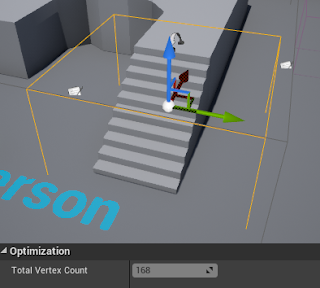
Image
Unreal Engine 4 has a lot of features to help you optimize. But some features may be needed to optimize a specific area. In this post, let's create a volume that calculates the sum of the vertices of the Actor contained in itself. Maybe it will help to optimize the building or grassland area. Implementation C ++ code work is required. OptimizationHelpVolume.h // Fill out your copyright notice in the Description page of Project Settings. #pragma once #include "CoreMinimal.h" #include "GameFramework/Volume.h" #include "OptimizationHelpVolume.generated.h" /** * Shows information related to optimization of all actors in the volume. */ UCLASS() class TEST01_API AOptimizationHelpVolume : public AVolume { GENERATED_UCLASS_BODY() public: UPROPERTY(VisibleInstanceOnly, Category = "Optimization" , Transient) int TotalVertexCount; protected: virtual void PostEditMove ( bool bFinished); virtua...
Explore 'Blueprint nativization method'(Not deep inside)

Image
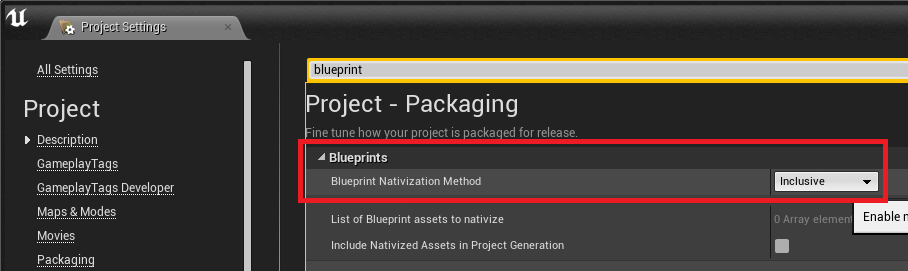
Perhaps many people are wondering if 'Blueprint nativization method' works well. It is difficult to look at all its internal structures and processes. However, if you are creating a game for the end consumer, it's great to know the key features. So I tested it very simply. Tested with Unreal Engine version 4.18.3. Step 1. Create a test actor and add a variable. Adds a simple toggle action. Step 2. Open the log and find the file. In my case, there was a file in the folder below : \Intermediate\Plugins\NativizedAssets\Windows\Game\Source\NativizedAssets\Private  You can see the code to be executed as shown below. Here is a simple example. Test yourself for a much more complex case. Step 3. Naming Test Let's test if you use a variable name that is not available in C ++. I will use East Asian characters. Disallowed characters have been changed to the appropriate characters. Step 4. File or Folder name Where special char...

Indoor/Outdoor material transition.

Image
Step 0. Generally, when you are outside, you do not need to draw the inside with the best quality. The same is true for the opposite case. LOD is good for performance, but in some cases, the distance may be ambiguous and too much quality is lost. So In this article, we will test indoor/outdoor material optimization with Unreal Engine 4. Step 1. We will use 'Material Parameter Collection'. You can see a related post : https://gameenginebread.blogspot.com/2017/06/night-visiontoggle-in-real-time.html Create new 'material parameter collection'. Add a parameter named 'Indoor'. Create new trigger box type blueprint. Change 'Indoor' according to the player overlapping status. Step 2. It works differently depending on the state of 'MaterialParameterColletion'. Step 3. This is the result screen. More... It may take more effort to make material. So consider these things before use thi...

Occlusion Test Actor

Image
Step 0. Knowing how 'Occlusion' works will greatly help you optimize performance. Type console command, r.VisualizeOccludedPrimitives 1 This command shows the mesh covered by the green line. But it only works in the editor. So In this article, we will make an actor to help us find distance and bound. Step 1. Create new StaticMeshActor. Add two TextRender components and arrow component. Check 'Use Attach Parent Bound'. Step 2. Draw the distance to player character and Bound size. This is convenient to use with OcclusionCullVolume. Step 3. This is the result screen. Step 4. Type console command 'show bounds' to see more information.

Animation reuse for improved performance

Image
Step 0. A well-made game shows a lot of characters without losing the quality of the rendering. In general, fewer bone counts and proper LOD usage will help optimize character rendering performance. A closer look reveals that the animation is being reused. Undoubtedly it will be very helpful. This time, we will do a basic test for 'animation reuse' with Unreal engine 4. Step 1. 'Set Master Pose Component' is the blueprint we were looking for. I've used it before in another article. https://gameenginebread.blogspot.com/2017/09/render-skeletal-mesh-with-different.html Step 2. Create many characters for testing. I used 21 * 21 characters. Step 3. This is the result of reusing the animation. Type console command 'stat anim' to see detail. 'AnimGameThreadTime' : 2.91ms CPU i7 6700k and Geforce 1060 are installed in the test PC. Step 4. Remove link to 'Set Master Pose Component' node and test a...